Create and Manage Content Controls in Word Using Python

Share office file processing skills in .NET, Java, and C++.
In modern document automation scenarios, content controls provide a structured way to create interactive Word documents. Content controls allow developers to embed interactive elements such as dropdown lists, date pickers, and text input fields into documents, enabling the creation of form templates, surveys, and standardized documents.
This article demonstrates how to programmatically add and manage various types of content controls in Word documents using Python and the Spire.Doc library, including combo boxes, text boxes, picture controls, date pickers, and drop-down lists.
Environment Setup
First, install the Spire.Doc for Python library:
pip install Spire.Doc
Spire.Doc is a feature-rich Word document processing library that supports creating, reading, editing, and converting Word documents without requiring Microsoft Word to be installed.
What Are Content Controls
Content controls (also known as Structured Document Tags - SDT) are container elements in Word documents that define regions for specific types of content. They offer several advantages:
Data Validation: Restrict users to input specific formats or select from predefined options
Structured Data: Facilitate subsequent data extraction and processing
User Experience: Provide intuitive interfaces such as dropdown menus and calendar pickers
Document Standardization: Ensure documents follow consistent formatting and standards
Common content control types include:
Combo Box
Text Box
Picture Control
Date Picker
Drop-Down List
Adding Combo Box Content Controls
Combo boxes allow users to select an item from a predefined list or enter custom values. This is particularly useful in scenarios requiring standardized input, such as selecting product names, departments, or categories.
from spire.doc import *
from spire.doc.common import *

# Create document object
document = Document()
section = document.AddSection()

# Add description text
paragraph = section.AddParagraph()
txtRange = paragraph.AppendText("Add Combo Box Content Control: ")
txtRange.CharacterFormat.Italic = True

# Create structured document tag
sd = StructureDocumentTagInline(document)
paragraph.ChildObjects.Add(sd)

# Set control type to combo box
sd.SDTProperties.SDTType = SdtType.ComboBox

# Create combo box and add options
cb = SdtComboBox()
cb.ListItems.Add(SdtListItem("Spire.Doc"))
cb.ListItems.Add(SdtListItem("Spire.XLS"))
cb.ListItems.Add(SdtListItem("Spire.PDF"))

# Apply control properties
sd.SDTProperties.ControlProperties = cb

# Set default display value
rt = TextRange(document)
rt.Text = cb.ListItems[0].DisplayText
sd.SDTContent.ChildObjects.Add(rt)

# Save document
document.SaveToFile("ComboBoxControl.docx", FileFormat.Docx)
document.Close()
Output:
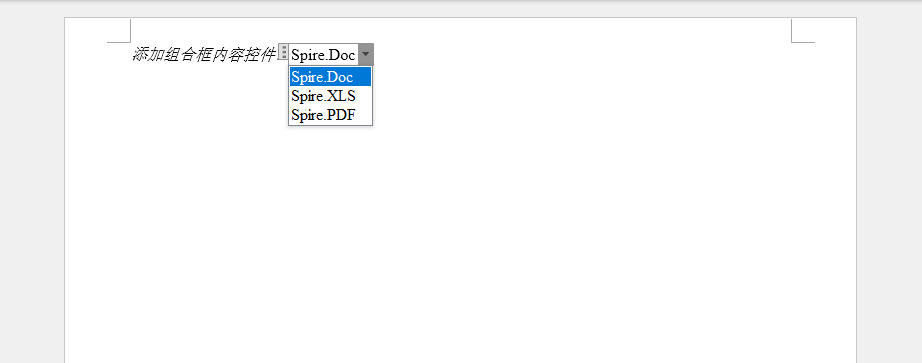
In the code above, the StructureDocumentTagInline class is used to create inline content controls. By setting SDTType to ComboBox, we specify the control type. The SdtComboBox object manages list items and allows dynamic addition or removal of options.
Adding Text Content Controls
Text controls allow users to input multi-line text, suitable for free-text fields such as addresses, comments, or descriptions.
from spire.doc import *
from spire.doc.common import *

document = Document()
section = document.AddSection()

# Add description
paragraph = section.AddParagraph()
txtRange = paragraph.AppendText("Add Text Content Control: ")
txtRange.CharacterFormat.Italic = True

# Create text control
sd = StructureDocumentTagInline(document)
paragraph.ChildObjects.Add(sd)
sd.SDTProperties.SDTType = SdtType.Text

# Configure text properties to allow multi-line input
text = SdtText(True)
text.IsMultiline = True
sd.SDTProperties.ControlProperties = text

# Set placeholder text
rt = TextRange(document)
rt.Text = "Enter text here..."
sd.SDTContent.ChildObjects.Add(rt)

document.SaveToFile("TextControl.docx", FileFormat.Docx)
document.Close()
Output:
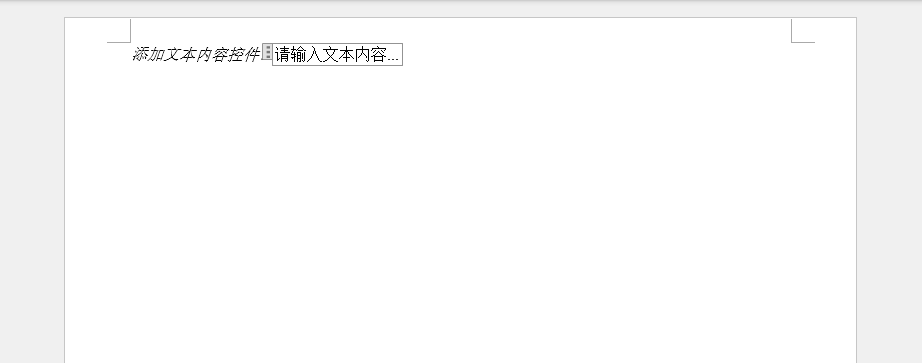
The SdtText constructor accepts a boolean parameter that specifies whether multi-line input is allowed. When set to True, users can input long text containing line breaks.
Adding Picture Content Controls
Picture controls allow users to insert and manage images in documents, ideal for scenarios requiring dynamic addition of product images, logos, or signatures.
from spire.doc import *
from spire.doc.common import *

document = Document()
section = document.AddSection()

paragraph = section.AddParagraph()
txtRange = paragraph.AppendText("Add Picture Content Control: ")
txtRange.CharacterFormat.Italic = True

# Create picture control
sd = StructureDocumentTagInline(document)
paragraph.ChildObjects.Add(sd)
sd.SDTProperties.SDTType = SdtType.Picture

# Load and add image
pic = DocPicture(document)
pic.Width = 100
pic.Height = 100
pic.LoadImage("./Data/logo.png")
sd.SDTContent.ChildObjects.Add(pic)

document.SaveToFile("PictureControl.docx", FileFormat.Docx)
document.Close()
Output:
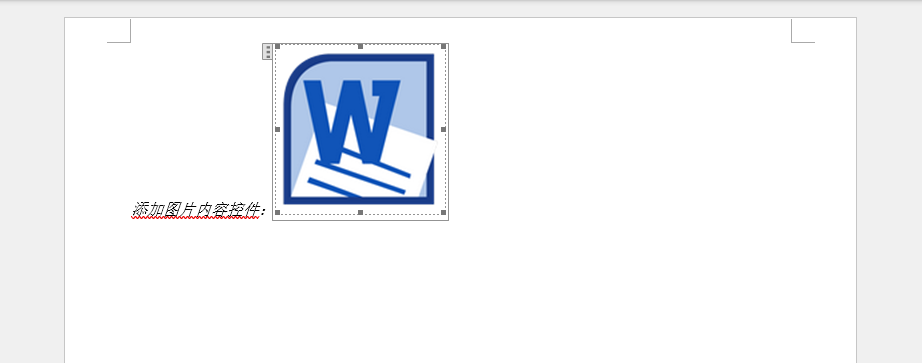
Picture controls automatically handle image scaling and layout, allowing users to replace or remove images through the control interface.
Adding Date Picker Content Controls
Date pickers provide a calendar interface that enables users to select dates in a standardized format, avoiding inconsistencies in date formatting.
from spire.doc import *
from spire.doc.common import *

document = Document()
section = document.AddSection()

paragraph = section.AddParagraph()
txtRange = paragraph.AppendText("Add Date Picker Content Control: ")
txtRange.CharacterFormat.Italic = True

# Create date picker
sd = StructureDocumentTagInline(document)
paragraph.ChildObjects.Add(sd)
sd.SDTProperties.SDTType = SdtType.DatePicker

# Configure date format and calendar type
date = SdtDate()
date.CalendarType = CalendarType.Default
date.DateFormat = "yyyy.MM.dd"
date.FullDate = DateTime.get_Now()
sd.SDTProperties.ControlProperties = date

# Set default date
rt = TextRange(document)
rt.Text = "2024.01.15"
sd.SDTContent.ChildObjects.Add(rt)

document.SaveToFile("DatePickerControl.docx", FileFormat.Docx)
document.Close()
Output:
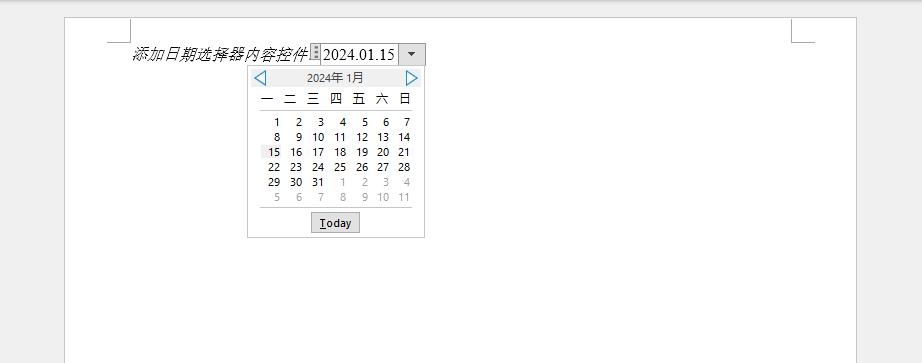
The SdtDate object allows customization of date format strings, supporting various common date representations such as "yyyy-MM-dd" or "MM/dd/yyyy".
Adding Drop-Down List Content Controls
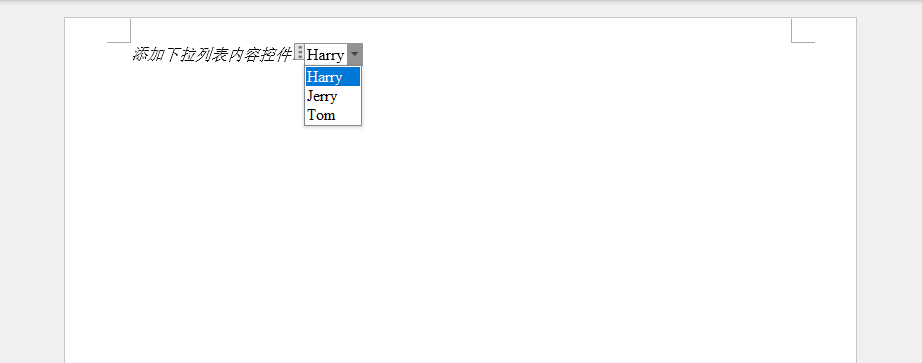
Unlike combo boxes, drop-down lists only allow users to select from predefined options without manual input. This is suitable for scenarios requiring strict input value restrictions.
from spire.doc import *
from spire.doc.common import *

document = Document()
section = document.AddSection()

paragraph = section.AddParagraph()
txtRange = paragraph.AppendText("Add Drop-Down List Content Control: ")
txtRange.CharacterFormat.Italic = True

# Create drop-down list
sd = StructureDocumentTagInline(document)
paragraph.ChildObjects.Add(sd)
sd.SDTProperties.SDTType = SdtType.DropDownList

# Add list items
sddl = SdtDropDownList()
sddl.ListItems.Add(SdtListItem("Engineering"))
sddl.ListItems.Add(SdtListItem("Marketing"))
sddl.ListItems.Add(SdtListItem("Human Resources"))
sd.SDTProperties.ControlProperties = sddl

# Set default option
rt = TextRange(document)
rt.Text = sddl.ListItems[0].DisplayText
sd.SDTContent.ChildObjects.Add(rt)

document.SaveToFile("DropDownListControl.docx", FileFormat.Docx)
document.Close()
Output:
Practical Tips
Locking Content Controls
To prevent users from modifying the structure of content controls, you can lock them:
# Lock control to prevent deletion or modification
sd.SDTProperties.LockContents = True
sd.SDTProperties.LockControl = True
Customizing Control Appearance
You can customize the display style of controls:
# Set control color
sd.SDTProperties.Color = Color.get_LightBlue()

# Set display appearance
sd.SDTProperties.Appearance = SdtAppearance.BoundingBox
Extracting Control Data
Extract values from content controls in existing documents:
# Iterate through all content controls in the document
for sdt in document.GetChildObjects(True, ObjectType.StructureDocumentTagInline):
    tag = sdt if isinstance(sdt, StructureDocumentTagInline) else None
    if tag:
        # Get control type
        control_type = tag.SDTProperties.SDTType
        # Get control content
        content = tag.SDTContent.Text
        print(f"Type: {control_type}, Content: {content}")
Conclusion
Content controls provide powerful interactivity for Word document automation. Using Python and the Spire.Doc library, we can programmatically create and manage various types of content controls, including:
Combo Boxes and Drop-Down Lists: Provide standardized option selection
Text Boxes: Support free-form text input
Picture Controls: Simplify image management
Date Pickers: Ensure consistent date formatting
These controls are particularly useful for creating form templates, contracts, surveys, and standardized reports. By combining different types of content controls appropriately, you can build interactive Word documents that are both aesthetically pleasing and practical, significantly improving document processing efficiency and accuracy.
In real-world projects, it is recommended to select appropriate control types based on specific requirements and consider adding data validation logic to ensure input quality. Additionally, reasonable control layout and clear labeling can greatly enhance user experience.

