PowerPoint Automation with Python: Batch Add Speaker Notes

Share office file processing skills in .NET, Java, and C++.
Speaker notes are an invaluable feature when creating presentations. They allow presenters to add comments, prompts, or detailed explanations beneath each slide—content that remains invisible to the audience during presentation mode but helps speakers organize their thoughts and maintain a smooth delivery pace.
In real-world scenarios, we often need to batch-add notes to multiple slides or extract note information from existing presentations. Manual operations are not only time-consuming but also prone to errors. By automating these tasks with Python, you can complete them efficiently and accurately.
This article demonstrates how to add speaker notes to PowerPoint slides using Python, as well as how to extract and manage existing note content. This approach is particularly useful for scenarios requiring batch processing of presentations, such as preparing training materials or organizing meeting presentations.
Environment Setup
First, install the Spire.Presentation library:
pip install Spire.Presentation
This library provides a comprehensive API for PowerPoint document manipulation, supporting the creation, modification, and reading of various presentation elements, including slide notes.
Adding Speaker Notes to Slides
Basic Workflow
The core steps for adding notes to slides include:
Load or create a PowerPoint document
Get the target slide
Access or create the notes page (NotesSlide)
Set the note text content
Save the document
Here's a complete example showing how to add notes to the first slide:
from spire.presentation import *

# Create a PowerPoint document object
presentation = Presentation()

# Load file from disk
presentation.LoadFromFile("Template_Ppt_1.pptx")

# Get the first slide
slide = presentation.Slides[0]

# Get the slide's notes page; create one if it doesn't exist
notes_slide = slide.NotesSlide
if notes_slide is None:
    notes_slide = slide.AddNotesSlide()

# Set the note text content
notes_slide.NotesTextFrame.Text = "Speaker notes: Introduce company background and project objectives"

# Save the document
presentation.SaveToFile("AddSpeakerNotes.pptx", FileFormat.Pptx2019)
presentation.Dispose()
Result Preview
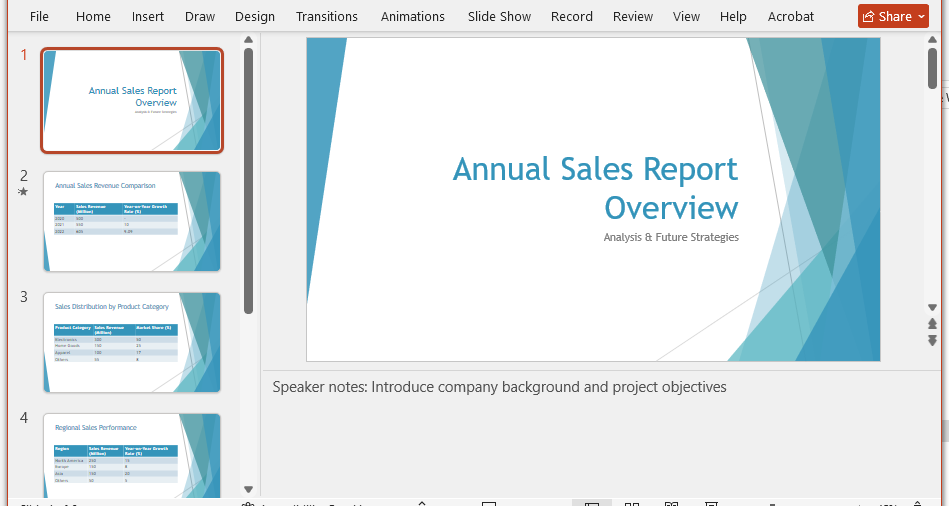
In this example, the NotesSlide property is used to access the slide's notes page. If the slide doesn't have a notes page yet, you need to call the AddNotesSlide() method to create one first. Then, set the note text content through the NotesTextFrame.Text property.
Batch-Adding Notes to Multiple Slides
In practical applications, you often need to add different notes to multiple slides. This can be achieved by iterating through the slide collection:
from spire.presentation import *

# Load the presentation
presentation = Presentation()
presentation.LoadFromFile("Training_Material.pptx")

# Define note content for each slide
speaker_notes = [
    "Opening remarks: Welcome everyone to this training session",
    "Key focus: Explain core concepts of Part 1",
    "Demonstrate real-world examples here",
    "Interactive segment: Q&A and discussion",
    "Summarize key points and preview next training session"
]

# Iterate through slides and add notes
for i, slide in enumerate(presentation.Slides):
    if i < len(speaker_notes):
        # Get or create notes page
        notes_slide = slide.NotesSlide
        if notes_slide is None:
            notes_slide = slide.AddNotesSlide()

        # Set note text
        notes_slide.NotesTextFrame.Text = speaker_notes[i]

# Save the document
presentation.SaveToFile("Training_With_Notes.pptx", FileFormat.Pptx2019)
presentation.Dispose()
This method is especially suitable for handling standardized presentation templates, allowing you to quickly add structured notes to an entire slide deck.
Extracting and Managing Speaker Notes
Besides adding notes, you may sometimes need to extract note information from existing presentations for review, backup, or conversion to other formats.
Extracting Notes from a Single Slide
from spire.presentation import *

# Load the presentation
presentation = Presentation()
presentation.LoadFromFile("Presentation_With_Notes.pptx")

# Get the first slide
slide = presentation.Slides[0]

# Get the notes page
notes_slide = slide.NotesSlide

if notes_slide is not None:
    # Extract notes text frame content
    note_text = notes_slide.NotesTextFrame.Text
    print(f"Notes for slide 1: {note_text}")
else:
    print("This slide has no notes")

presentation.Dispose()
Batch-Extracting Notes from All Slides
For presentations containing multiple slides, you can iterate through all slides, extract their notes, and save them to a text file:
from spire.presentation import *

def save_notes_to_file(filename, notes_list):
    """Save notes list to a text file"""
    with open(filename, "w", encoding="utf-8") as f:
        for note in notes_list:
            f.write(note + "\n")

# Load the presentation
presentation = Presentation()
presentation.LoadFromFile("Conference_Presentation.pptx")

# Store all notes
all_notes = []

# Iterate through all slides
for i, slide in enumerate(presentation.Slides):
    notes_slide = slide.NotesSlide

    if notes_slide is not None:
        note_text = notes_slide.NotesTextFrame.Text
        note_info = f"Slide {i + 1}: {note_text}"
        all_notes.append(note_info)
    else:
        all_notes.append(f"Slide {i + 1}: No notes")

# Save to text file
save_notes_to_file("Extracted_Speaker_Notes.txt", all_notes)

print(f"Extracted {len(all_notes)} note entries in total")
presentation.Dispose()
This example demonstrates how to extract all notes from a presentation and save them to a text file, making it convenient for subsequent review or use as a speaking script.
Deleting and Modifying Notes
In certain situations, you may need to delete or modify existing note content.
Deleting Notes from a Specific Slide
from spire.presentation import *

# Load the presentation
presentation = Presentation()
presentation.LoadFromFile("Presentation.pptx")

# Get the first slide
slide = presentation.Slides[0]

# Delete notes from this slide
slide.RemoveNotesSlide()

# Save the document
presentation.SaveToFile("Presentation_No_Notes.pptx", FileFormat.Pptx2019)
presentation.Dispose()
Modifying Existing Notes
If you need to modify existing notes, you can directly reset the NotesTextFrame.Text property:
from spire.presentation import *

# Load the presentation
presentation = Presentation()
presentation.LoadFromFile("Presentation.pptx")

# Get the first slide and its notes
slide = presentation.Slides[0]
notes_slide = slide.NotesSlide

if notes_slide is not None:
    # Append or modify note content
    original_text = notes_slide.NotesTextFrame.Text
    notes_slide.NotesTextFrame.Text = original_text + "\n\nAdditional note: Please add the latest data here"

# Save the document
presentation.SaveToFile("Presentation_Updated.pptx", FileFormat.Pptx2019)
presentation.Dispose()
Practical Tips
Formatting Note Text
Note text supports basic formatting. You can add line breaks, paragraphs, and other elements using rich text:
# Use line breaks to separate different paragraphs
notes_slide.NotesTextFrame.Text = "Part 1: Background Introduction\n\nPart 2: Core Content\n\nPart 3: Summary"
Checking Whether Slides Have Notes
When processing large numbers of slides, you can first check which slides already have notes to avoid duplicate operations:
for i, slide in enumerate(presentation.Slides):
    if slide.NotesSlide is not None:
        print(f"Slide {i + 1} already has notes")
    else:
        print(f"Slide {i + 1} needs notes added")
Relationship Between Notes and Export
It's important to note that when exporting PowerPoint to PDF or image formats, speaker notes are not included in the output files by default. This makes notes truly "behind-the-scenes" content, visible only to the presenter.
Summary
This article demonstrated how to add, extract, modify, and delete speaker notes in PowerPoint slides using Python. Through these techniques, you can efficiently manage note information in presentations and improve your presentation creation workflow.
Key takeaways include:
Using the
NotesSlideproperty to access slide notes pagesCreating new notes pages with the
AddNotesSlide()methodSetting and retrieving note text using
NotesTextFrame.TextBatch-processing notes across multiple slides
Extracting notes and saving them to external files
These techniques can be applied to various scenarios, such as preparing training materials, managing meeting presentations, and generating speaking scripts. Combined with other PowerPoint automation features, you can build a complete presentation processing workflow.


